Open an agent from Agents to edit it. Changes save automatically.
Build an agent, step by step
Section titled “Build an agent, step by step”Step 1: Start a blank agent
Open Agents & teams in the sidebar and click Blank agent. To start from a sentence or a template instead, see Create an agent.
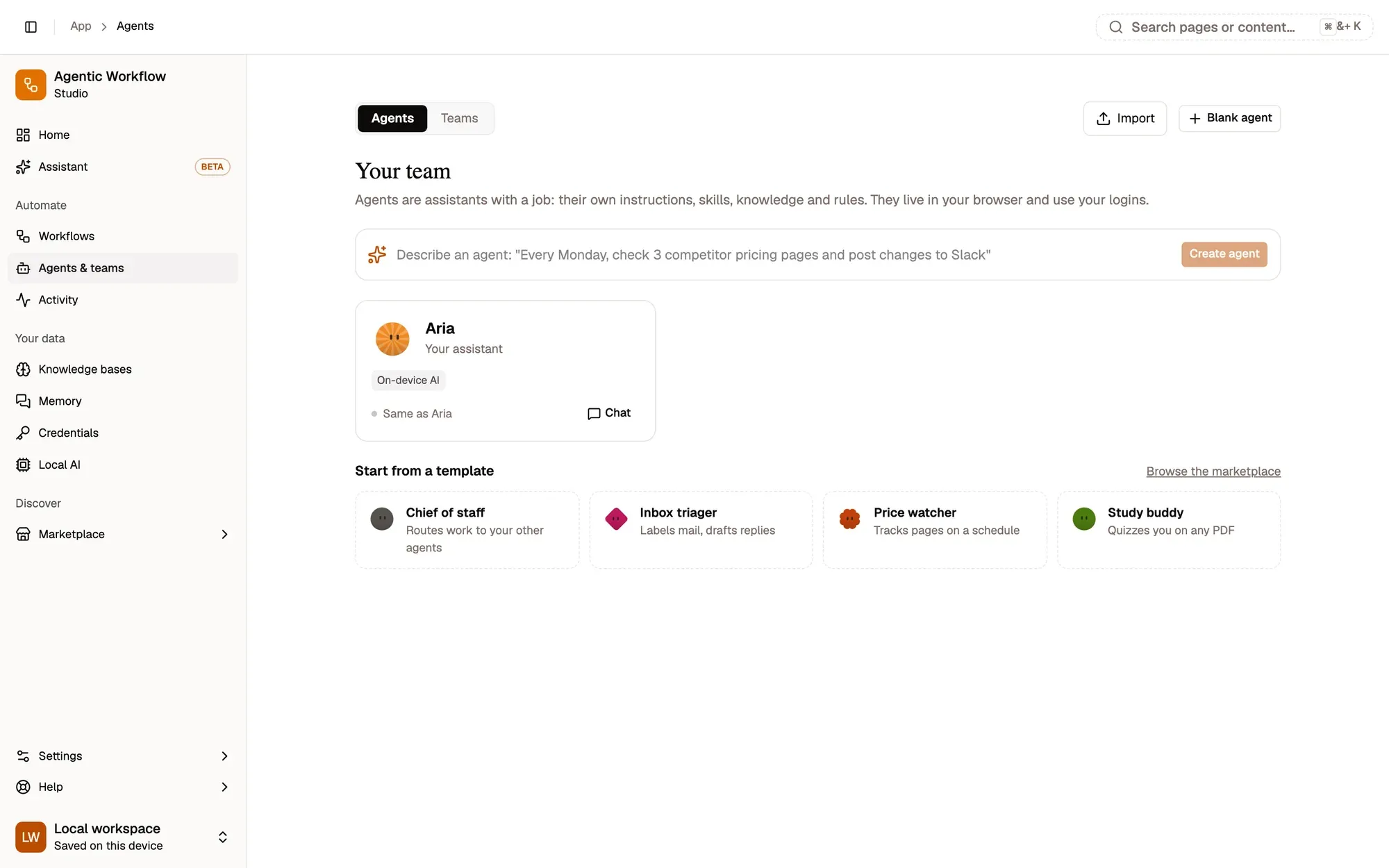
Check: the builder opens on the Identity tab, for an agent called New agent.
Step 2: Name it
On Identity, start with the Name and One-line role at the top. While the agent is new, its look and its @handle follow what you type, so it gets a face that suits its job right away. Then change anything you like in the look studio below: see Design its look.
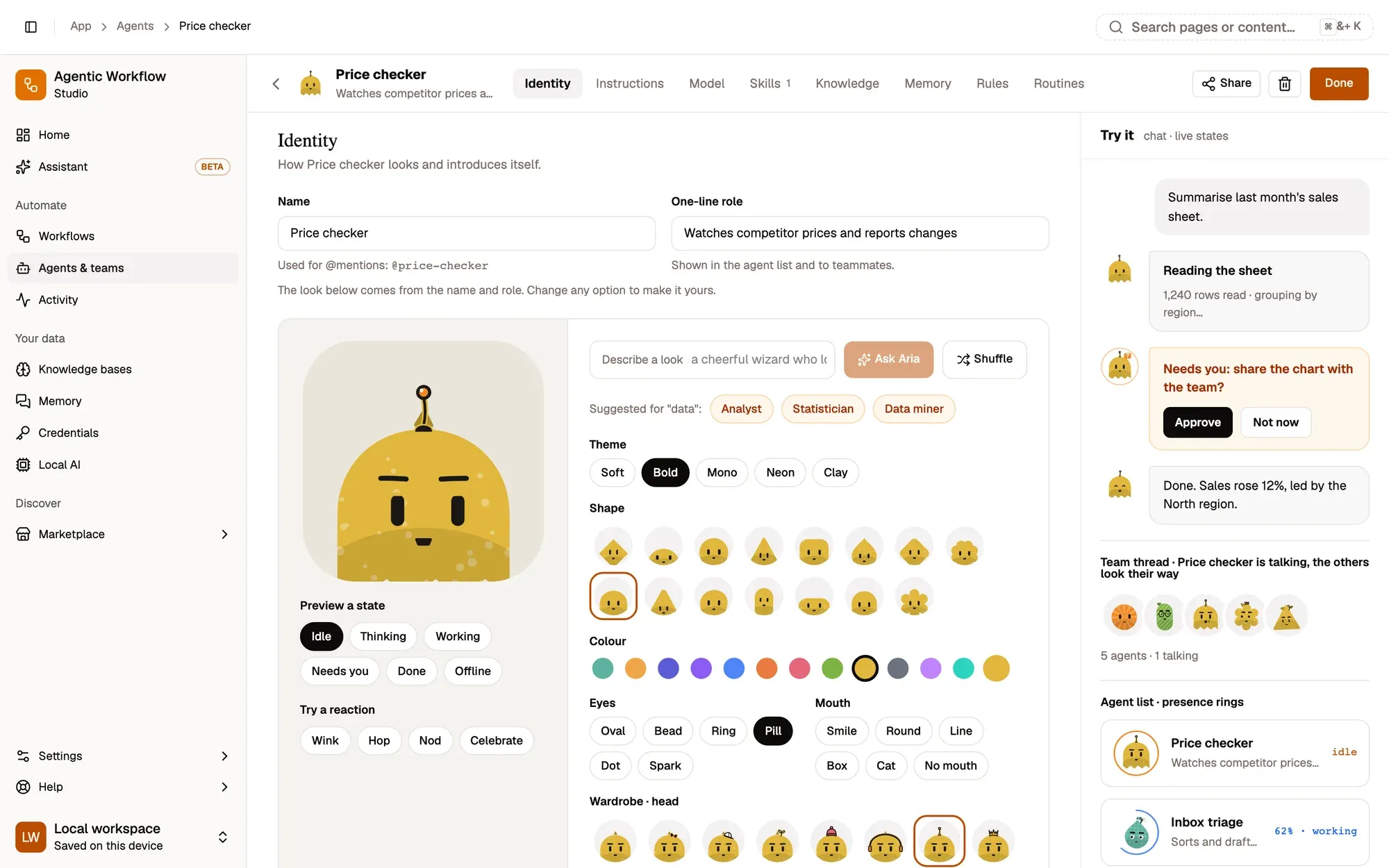
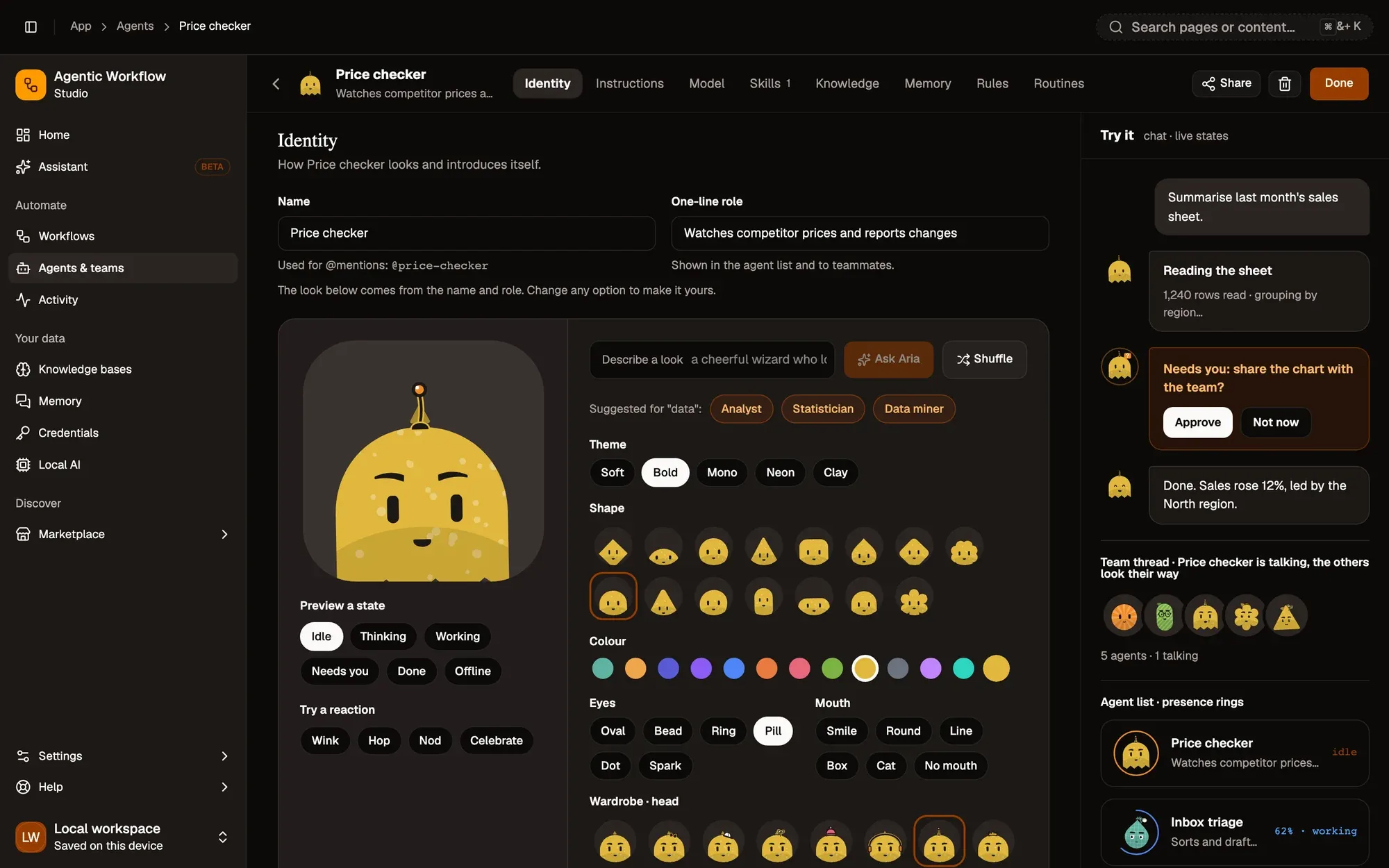
Check: the name shows in the header and in the agent list on the right, and the face changes as you type.
Step 3: Write its instructions
On Instructions, say what its job is, how to work and what to avoid. Insert variables like {today}, or click Improve with Aria.
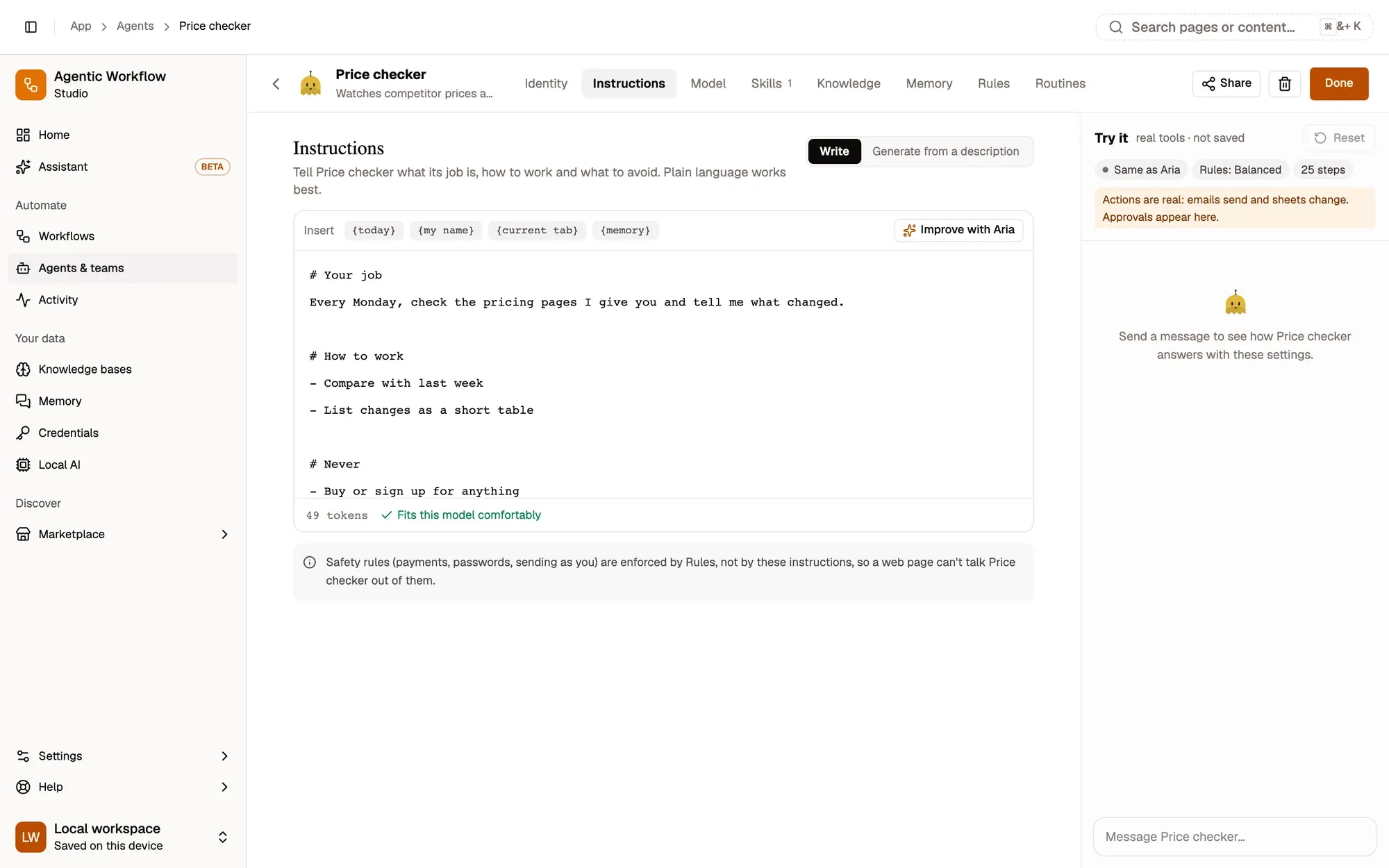
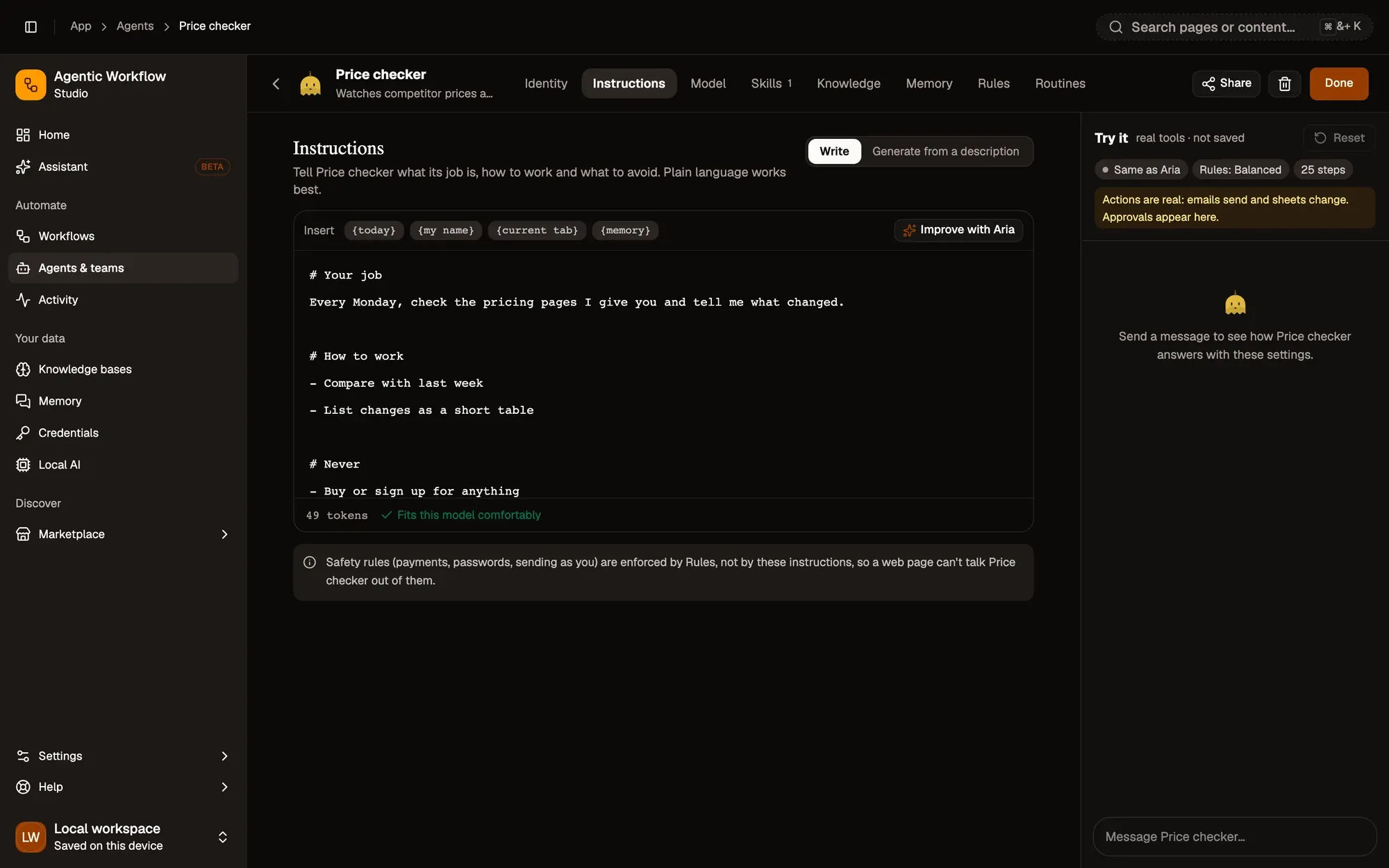
Check: the token count under the editor says the instructions fit the model.
Step 4: Choose its model
On Model, keep Same as Aria or pick an on-device, Ollama or cloud model, then set Creativity and Max steps per task.
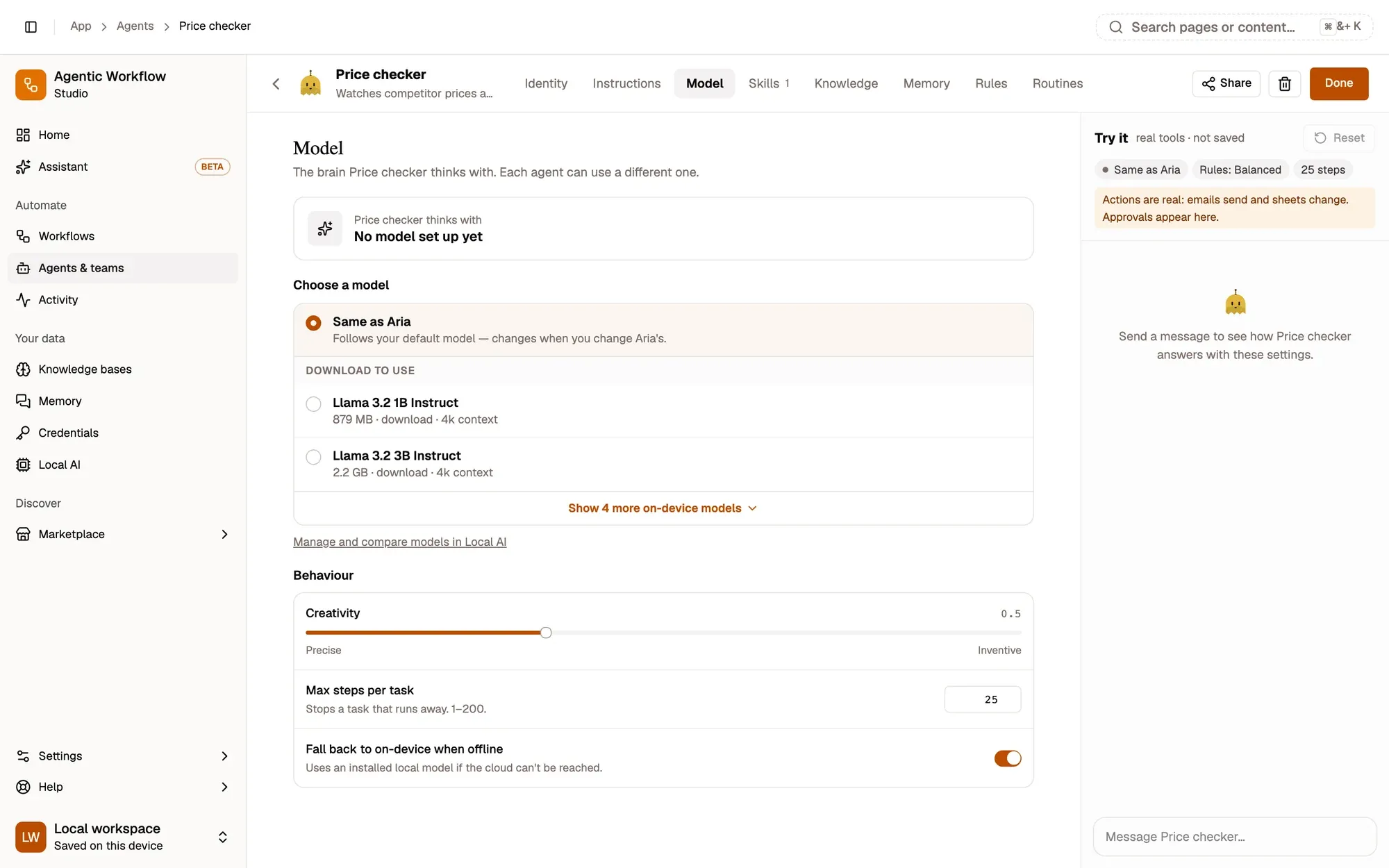
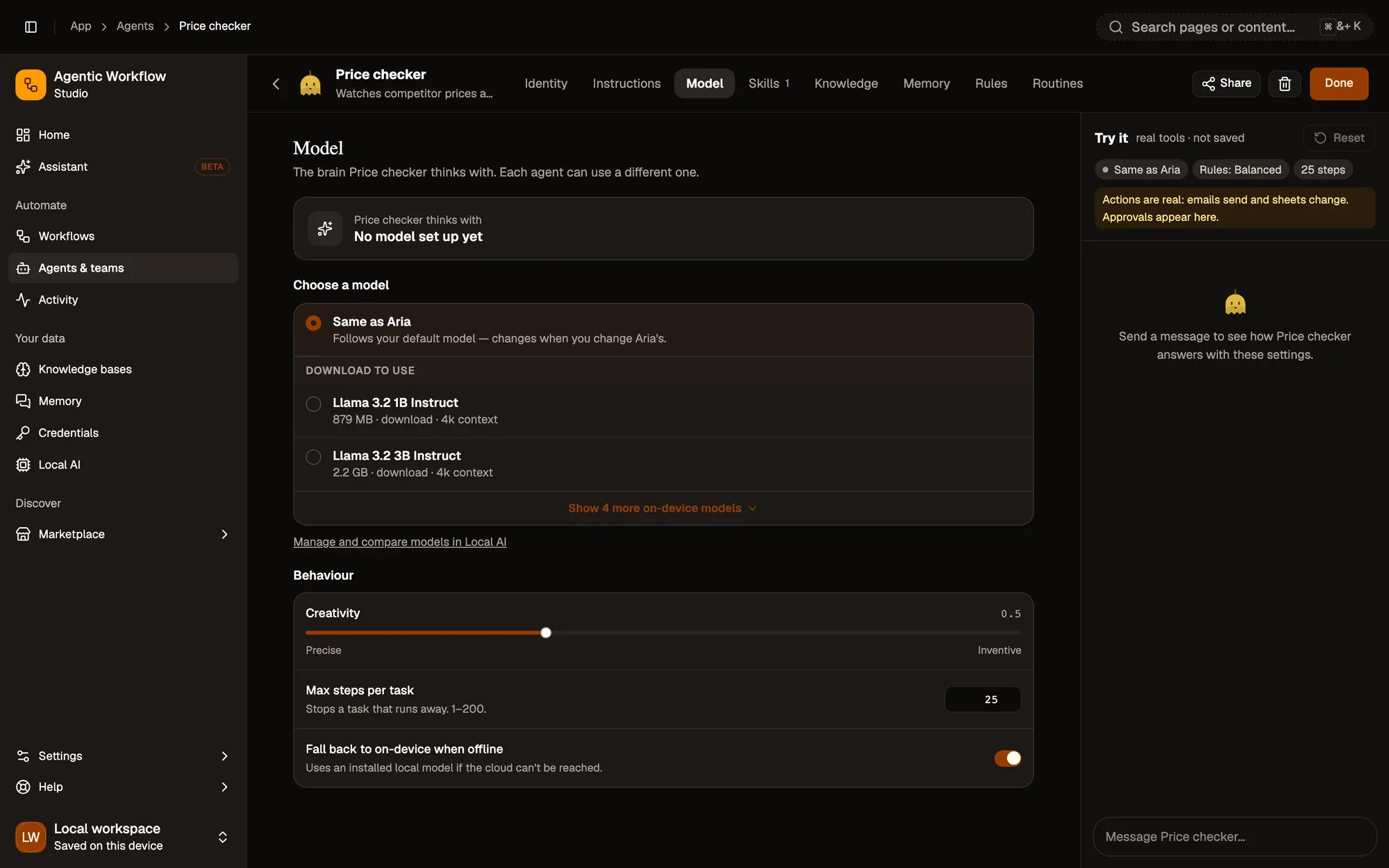
Check: the Try it panel shows the model in its chips.
Step 5: Turn on its skills
On Skills, switch on what it may use: browser control, web search, workflows, on-device AI, teammates or MCP servers.
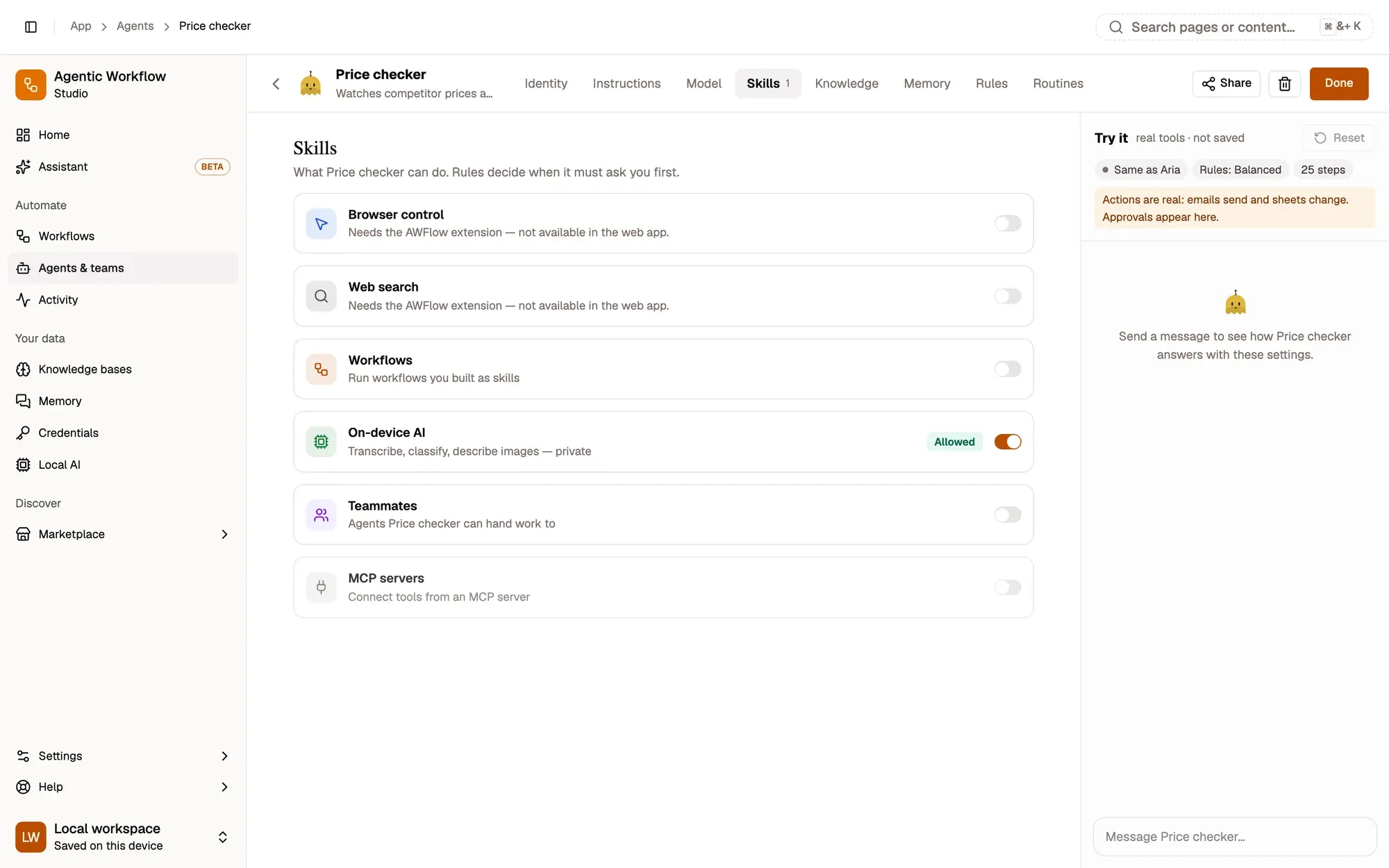
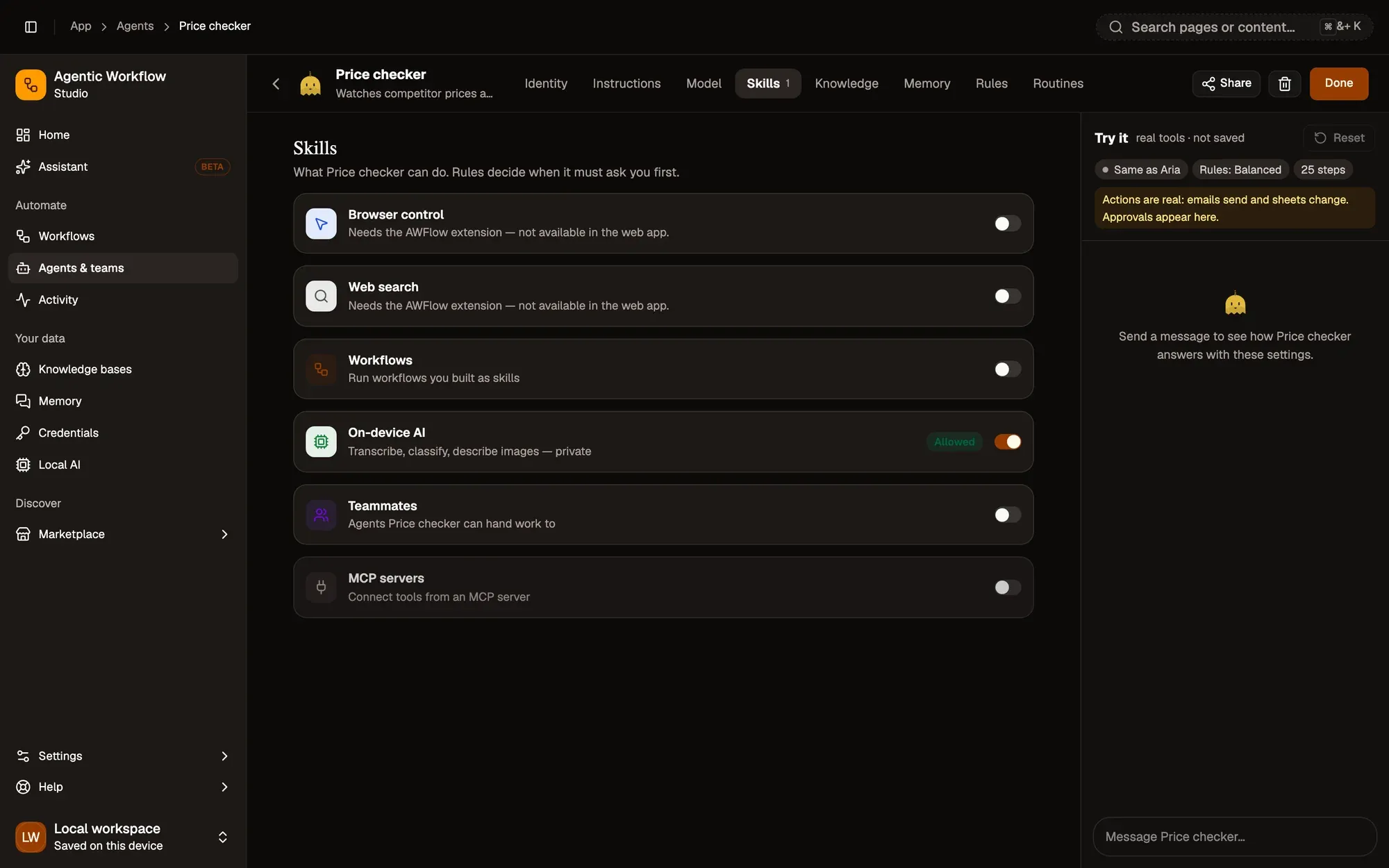
Check: the Skills tab shows the number of skills that are on.
Step 6: Try it
Send a message in the Try it panel on the right. Edits apply on your next message; changes save automatically.
Check: the agent answers in the Try it panel, using your settings.
The builder tabs
Section titled “The builder tabs”The tabs sit in the header, next to the agent’s name. In a narrow window they move to a row under the name.
| Tab | What you set |
|---|---|
| Identity | Its name, @handle and role at the top, then its look (in the look studio), greeting and conversation starters. Try it · chat · live states shows it in an example chat, a team thread and the agent list. |
| Instructions | How it works and what it avoids. Use variables like {today}, {my name}, {current tab} and {memory}. Improve and Generate ask your model for help; earlier versions are kept. |
| Model | Same as Aria or a specific on-device, Ollama (detected automatically when it is running) or cloud model, its creativity, max steps per answer, and whether to fall back to on-device when you’re offline. |
| Skills | What it can do: Browser control, Web search, Workflows, On-device AI, Teammates, MCP servers. See Give it skills. |
| Knowledge | The knowledge bases it uses in every chat, routine and team it joins, when to look things up, whether it shows sources or may search on its own, and Try it. See Knowledge for an agent. |
| Memory | Whether it learns from chats, whether it also reads Aria’s memory, its suggested facts, and its memories: edit, forget, or share one with a team. See Assistant memory. |
| Rules | What it does alone, what it asks about, and what it never does. See Browser control & safety. |
| Routines | Run it on a schedule, when a page opens or changes, or record the steps once (Show it once). See Routines. |
A cloud model needs a key in Settings › Providers: see All connections for your provider.
Try it
Section titled “Try it”The right panel lets you Try it: chat with the agent as you edit, and on the Rules tab, Test a rule with a sentence like “click Reserve on booking.example”.
Try it runs the real agent: its model, skills, rules, approvals and max steps, exactly what a chat with it would use. A row of chips shows what is in effect (the model and where it runs, each skill, marked off when it can’t be used, the rules preset and the step limit). Edits apply on your next message.
You see the same work timeline, step limit card and approval receipts as in a chat, and a banner when a skill is off. Reset starts over with a fresh chat, tools and browser session.
Looks and living eyes
Section titled “Looks and living eyes”Every agent is a character. Its face shows what it is doing, in chats, in the agent list and in team threads, so you can tell at a glance which agent is busy and which one needs you.
What the face shows
Section titled “What the face shows”| What you see | What it means |
|---|---|
| Blinks and glances around | Idle: nothing to do right now. |
| Eyes drift up, a thought bubble | Thinking: it is working out an answer. |
| Eyes scan side to side, a spinner | Working: browsing a page or using a tool. |
| Mouth moves with the words | Speaking: its reply is coming in. |
| Looks at you and bounces, an orange “?” | Needs you: it is waiting for your ok. |
| Happy squint and a hop, sparkles | Done: it just finished. |
| Worried brows, a sweat drop | Can’t: a step failed or a skill isn’t available. |
| Eyes closed, “zzz” | Offline: its model isn’t ready yet. |
When an agent is waiting for an approval you can answer, its picture in Agents & teams also gets a pulsing orange needs-you ring until you answer.
At the top of a team thread, the members’ faces sit side by side and all look at whoever is speaking, so you can follow the conversation. See Teams.
Design its look
Section titled “Design its look”The look studio is on the Identity tab, under the name and role. Every change saves at once. On the left, a preview stays in view while you scroll the pickers on the right. On the right, the Try it · chat · live states rail shows the same agent in an example chat, a team thread and the agent list. Hover or tap a step to find it on the screen.
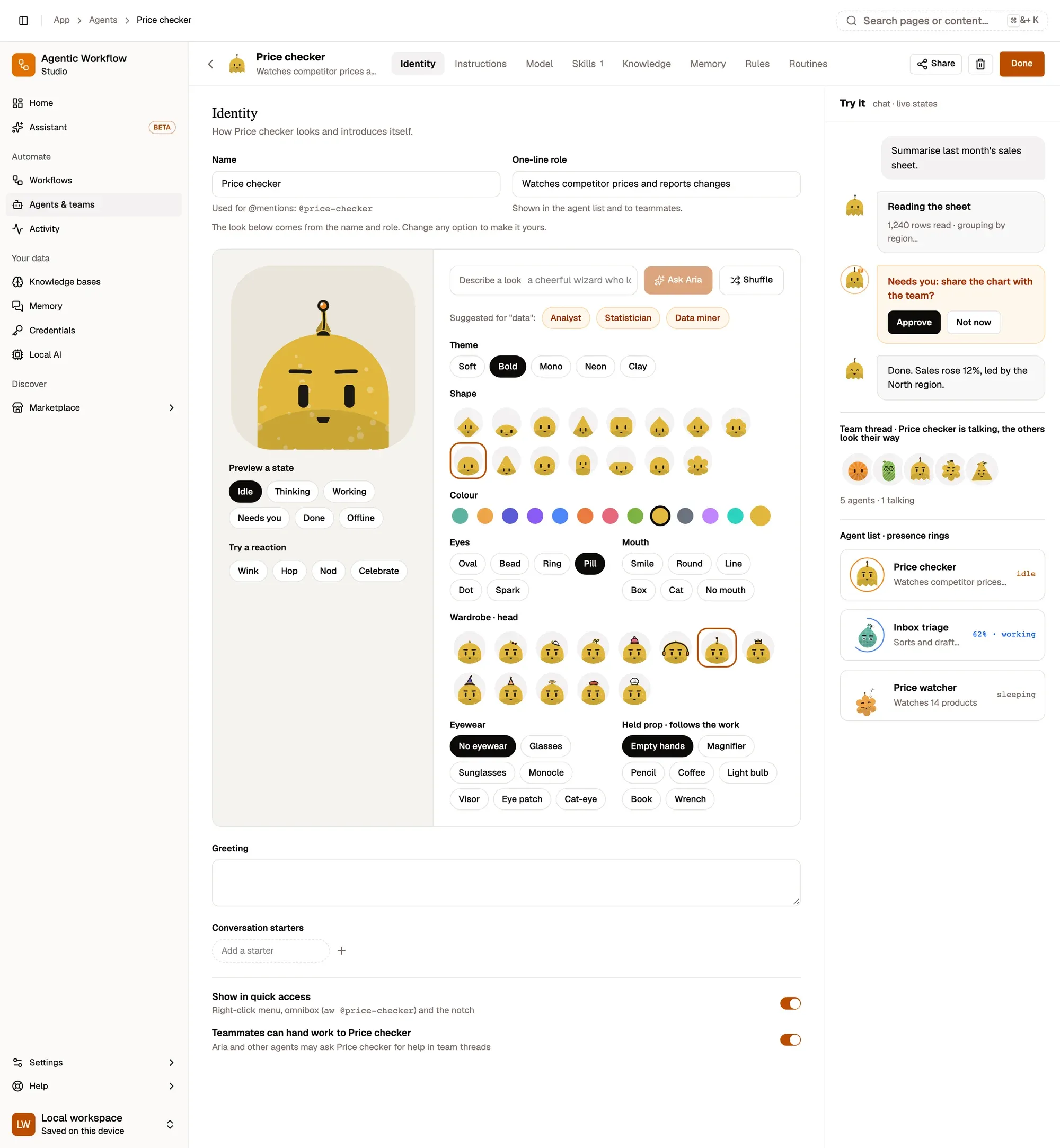
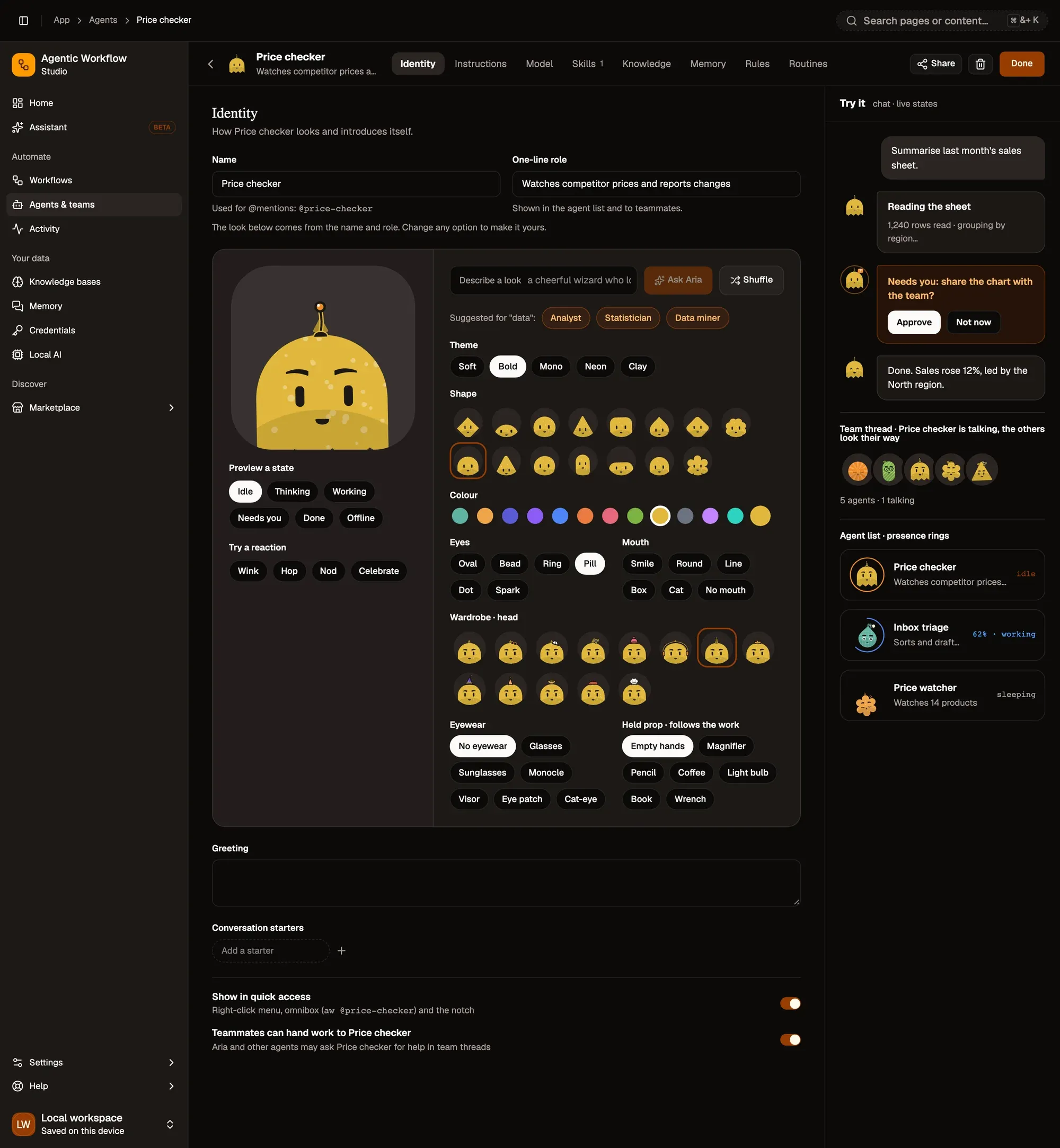
Numbered areas in the screenshot: 1. Preview a state; 2. Try a reaction; 3. Describe a look; 4. Shuffle; 5. Suggested looks; 6. Theme; 7. Shape; 8. Colour; 9. Eyes and mouth; 10. Wardrobe · head; 11. Eyewear and held prop; 12. Example chat; 13. Team thread; 14. Agent list.
A new agent’s look comes from its name and role, and changes as you type them, until you change any option yourself. From then on, renaming keeps your look; click Generate one from the name under the role to start again from the name. Its @handle also follows the name until its first chat, so @mentions you already use never break.
Agents made before the new faces show an Upgrade face switch above the pickers. Turn it on to add brows, a mouth and cheeks; shape, colour and wardrobe stay. Turn it off to go back.
New agents get a look that suits their job; press Try another look before creating one. Aria’s look (orange, with sun rays) can’t be changed, so you always recognize her; her face still shows what she is doing.
Calm the motion
Section titled “Calm the motion”Go to Settings › Preferences › Agent animations: Lively (faces move and react, and eyes follow your pointer), Calm (faces move and react) or Off (still faces). Status marks, like the needs-you badge and ring, always show, whatever you pick. When your system asks to reduce motion, faces stay still. See Preferences.